You land on a site. Clean layout, smooth sections, well-structured columns — and something about it just feels like Elementor. Maybe you’re a developer scoping a client project, maybe you’re a designer looking for reference. Either way, you want to confirm it.
Good news: WordPress Elementor leaves traces everywhere. You don’t need any paid tool or technical background to spot it. There are five reliable ways to check — and I’ll walk you through each one in plain language.
This post contains affiliate links. If you purchase through our links, we may earn a small commission at no extra cost to you. Thank you for your support!The Fastest Way: Just Search the Page Source
This works 90% of the time and takes under 30 seconds.
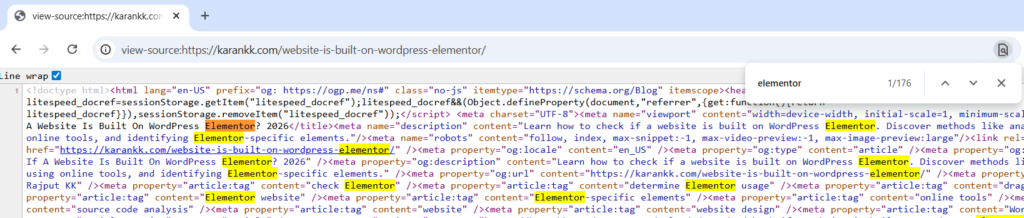
Open the website you want to check. Right-click anywhere on the page and hit View Page Source (Chrome, Firefox, Edge — all support this). Now press Ctrl+F and search for: elementor
If the site is built on WordPress Elementor, you’ll find it immediately — usually in the first few results. Here’s what to look for:
/wp-content/plugins/elementor/— confirms Elementor plugin is activeelementor-section,elementor-widget,elementor-container— These are Elementor’s default CSS classes injected into every page it builds<!-- Elementor. Comment tags — Elementor adds structured HTML comments as section markers
Any one of these is enough confirmation. If you see all three, there’s zero doubt.
One thing I’ve noticed while working on client sites — some owners use a caching plugin or a CDN that strips HTML comments. In those cases, the CSS classes elementor-section are still visible, so that’s the more reliable signal to look for.
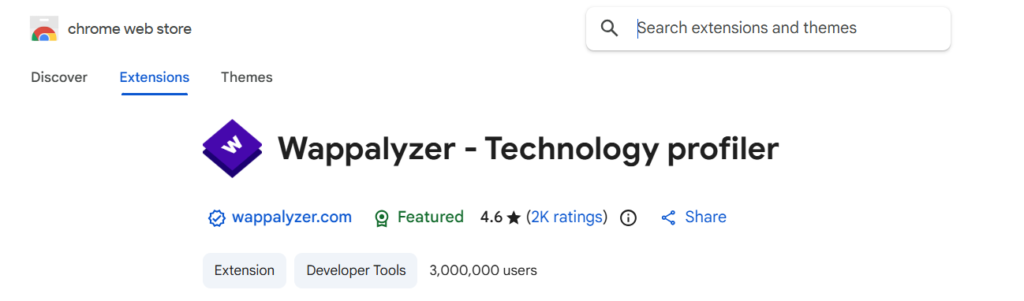
Check with Wappalyzer — The Quickest Browser Extension
If you’re regularly checking sites (competitor research, client audits, niche analysis), install Wappalyzer. It’s a free browser extension available for Chrome and Firefox.
Once installed, visit any website and click the Wappalyzer icon in your toolbar. It instantly shows you:
- The CMS (WordPress, in this case)
- The page builder (Elementor, Divi, Beaver Builder, etc.)
- Theme, hosting stack, analytics tools — everything
For WordPress Elementor detection specifically, Wappalyzer is accurate and fast. No manual digging required.
WhatRuns is another solid extension that does something similar — it’s slightly less detailed but works well for quick checks.
Use BuiltWith or IsItWP for a Detailed Breakdown
When you want more than just “yes or no,” these online tools give you a full technology report.
BuiltWith (builtwith.com): Paste the URL, hit Lookup. It shows the complete stack — CMS, plugins detected, CDN, analytics, and ad networks. For WordPress Elementor sites, it typically shows Elementor under the “CMS” or “Widgets and Editors” category.

IsItWP (isitwp.com): More WordPress-focused. It confirms whether a site runs WordPress and often surfaces the active page builder. Cleaner interface if you don’t need the full enterprise-level breakdown BuiltWith provides.

WhatCMS (whatcms.org): Does exactly what the name says. Useful as a cross-check if the other two give you unclear results.
From a practical standpoint, BuiltWith is the most comprehensive, but IsItWP is faster if your only question is “WordPress or not + which builder?”
Inspect Element: Look for Elementor Classes Directly
This method is useful when you want to confirm Elementor on a specific section or widget — not just the page overall.
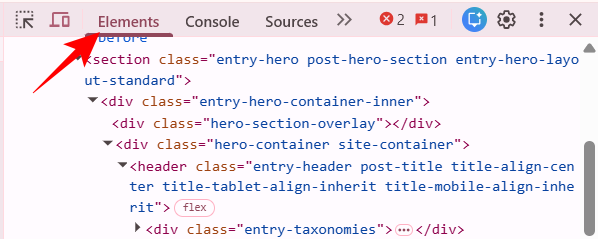
Right-click on any visible element (a button, a heading, an image block) and click Inspect or Inspect Element. The browser DevTools panel opens. Look at the HTML surrounding that element.
Elementor-built pages consistently use a predictable class structure:
<div class="elementor-section elementor-top-section">
  <div class="elementor-widget-wrap">
    <div class="elementor-widget elementor-widget-heading">
If you see class names starting with elementor- wrapping the content, it’s Elementor. No ambiguity.
This method also helps you differentiate between pages built with Elementor vs pages that just run WordPress. A site can have WordPress as the CMS but use Gutenberg or another builder for page layout. The class names make it clear which tool actually rendered that specific page.
What the <body> Tag Tells You
This is a detail most articles skip — and it’s actually one of the cleanest signals.
In the page source, find the <body> tag. On an Elementor-built page, it typically looks like this:
<body class="... elementor-default elementor-kit-123 elementor-page elementor-page-456 ...">The classes elementor-default and elementor-page are added by Elementor directly to the body tag. This is hard to fake or accidentally replicate. If these are present, Elementor is active and was used to build that specific page.
This is particularly useful when a site uses Elementor only on some pages (common with hybrid setups where the blog uses Gutenberg but the homepage/landing pages use Elementor). The body class gives you page-level confirmation, not just site-level.
What If the Site Is Minified or Obfuscated?
Some sites run heavy optimization — minified HTML, combined CSS files, and class renaming through optimization plugins. In those cases, source code searching becomes harder.
A few things still work:
- Wappalyzer and WhatRuns — these analyze HTTP headers and script fingerprints, not just HTML classes, so they remain reliable even on highly optimized sites
- BuiltWith — same reason; it uses multiple detection signals
- /wp-json/ endpoint — if
yoursite.com/wp-json/Returns a JSON response; the site runs WordPress (Elementor is WordPress-only, so this narrows it down) - elementor-frontend.js — even minified sites usually load this script file. Search the page source for
elementor-frontendAnd you’ll find it if Elementor is active
The one case where detection genuinely fails: sites that export Elementor-built pages as static HTML and host them outside WordPress. At that point, Elementor is no longer running — it just did the design work. Very rare, but worth knowing.
Now That You’ve Confirmed It’s Elementor — What’s Next?
If you found out a site uses WordPress Elementor and you want to build something similar or extend your own Elementor setup, the builder itself is just the starting point. The real power comes from the addon ecosystem.
Two that I use regularly on client projects:
Addons for Elementor — adds a solid set of extra widgets and section templates that the core Elementor plugin doesn’t include. Things like advanced tabs, pricing tables, content toggles, and more. Good fit if you want to extend without bloating your setup.
Ultimate Addons for Elementor (UAE) — more advanced. It brings in creative widgets, marketing-focused elements, and better design flexibility. I’ve used it on a couple of agency projects where the client wanted more visual variety than stock Elementor offers. The particle effects and advanced headings widgets alone save a decent amount of custom CSS time.
Neither of these replaces Elementor — they sit on top of it. If you’re planning to build something with Elementor after confirming a competitor’s setup, these are worth a look.
Pros and Cons of WordPress Elementor
Pros
- Visual drag-and-drop editor — no coding required for most layouts
- Massive template library covering almost every niche
- Works with most WordPress themes (Hello Elementor recommended for the cleanest output)
- Active plugin ecosystem — UAE, Addons for Elementor, JetPlugins, etc.
- Elementor Free is genuinely functional, not just a teaser
Cons
- Elementor adds significant CSS and JS to every page — it can hurt LCP if not optimized. I’ve seen it push page weight up noticeably on sites without a caching layer
- Switching away from Elementor later is painful — the shortcodes are embedded deep into your content
- The editor can feel slow on lower-spec hosting; it’s resource-hungry in the backend
- Some third-party addon plugins from lesser-known developers load unnecessary scripts even on pages where their widgets aren’t used
Frequently Asked Questions
Can a website use WordPress without Elementor?
Yes, absolutely. WordPress is the CMS. Elementor is one of many page builders that run on top of it. A WordPress site can use Gutenberg (the native editor), Divi, Beaver Builder, Bricks, or just a plain theme — without Elementor at all. That’s why confirming the page builder separately matters.
Does Elementor Free leave the same source code traces as Elementor Pro?
Yes. The core CSS classes — elementor-section, elementor-widget, elementor-page — are present in both free and pro versions. You can’t determine from the source code alone whether a site is on the free or paid tier. The pro version adds some additional widget classes, but the base fingerprint is identical.
What’s the difference between detecting WordPress and detecting Elementor?
Detecting WordPress tells you the CMS. Detecting Elementor tells you which page builder was used to design the pages. A site can run WordPress without Elementor. Always check for both separately — use /wp-json/ or /wp-login.php for WordPress confirmation, then check for elementor-section classes for Elementor confirmation.
Is Wappalyzer always accurate for detecting Elementor?
It’s accurate in most cases. Where it can struggle: heavily cached sites where HTTP headers are modified, or sites behind aggressive firewalls. In those situations, use the manual source code method as a cross-check. Running two methods together gives you near-100% confidence.
Can I detect Elementor on password-protected pages?
No. If the page requires a login or password to access the content, you can’t view the source or inspect elements properly. You’d only be able to check the login/password page itself, which is usually a default WordPress template and won’t show Elementor output.
Does using a CDN hide Elementor from detection tools?
A CDN changes where assets are served from, not what they are. Wappalyzer and BuiltWith still detect Elementor reliably on CDN-served sites because they look at HTML structure and script names — not just asset URLs.
Bottom Line
Checking if a website uses WordPress Elementor isn’t complicated — it just depends on how much detail you need.
For a quick check: Ctrl+U → Ctrl+F → type “elementor” — done in 20 seconds. For regular competitor or client research: install Wappalyzer once and let it run automatically. For a full tech stack breakdown, BuiltWith has you covered.
And if you’re building with Elementor yourself, extending it with Addons for Elementor or Ultimate Addons for Elementor is worth exploring once you’ve outgrown the core widget set.